





Struggling to stay on target, overshooting your shots or taking your thumb off the aiming stick to jump? Your controller setup is a good place to start.
The best controller settings to use for Call of Duty: Modern Warfare 4 should make aiming predictable and important actions easy to reach. Sensitivity, deadzones and button mappings need to work together with the controller in your hands.
Below, you’ll find a beta-based starting configuration, a step-by-step tuning process and a practical paddle setup for AIM controllers on PS5 and PC.
Updated October 13, 2026. The numerical starting preset below comes from MW4 beta feedback, rather than AIM performance testing. Menu options and behaviour should be checked again after launch.
MW4 controller settings: quick starting guide
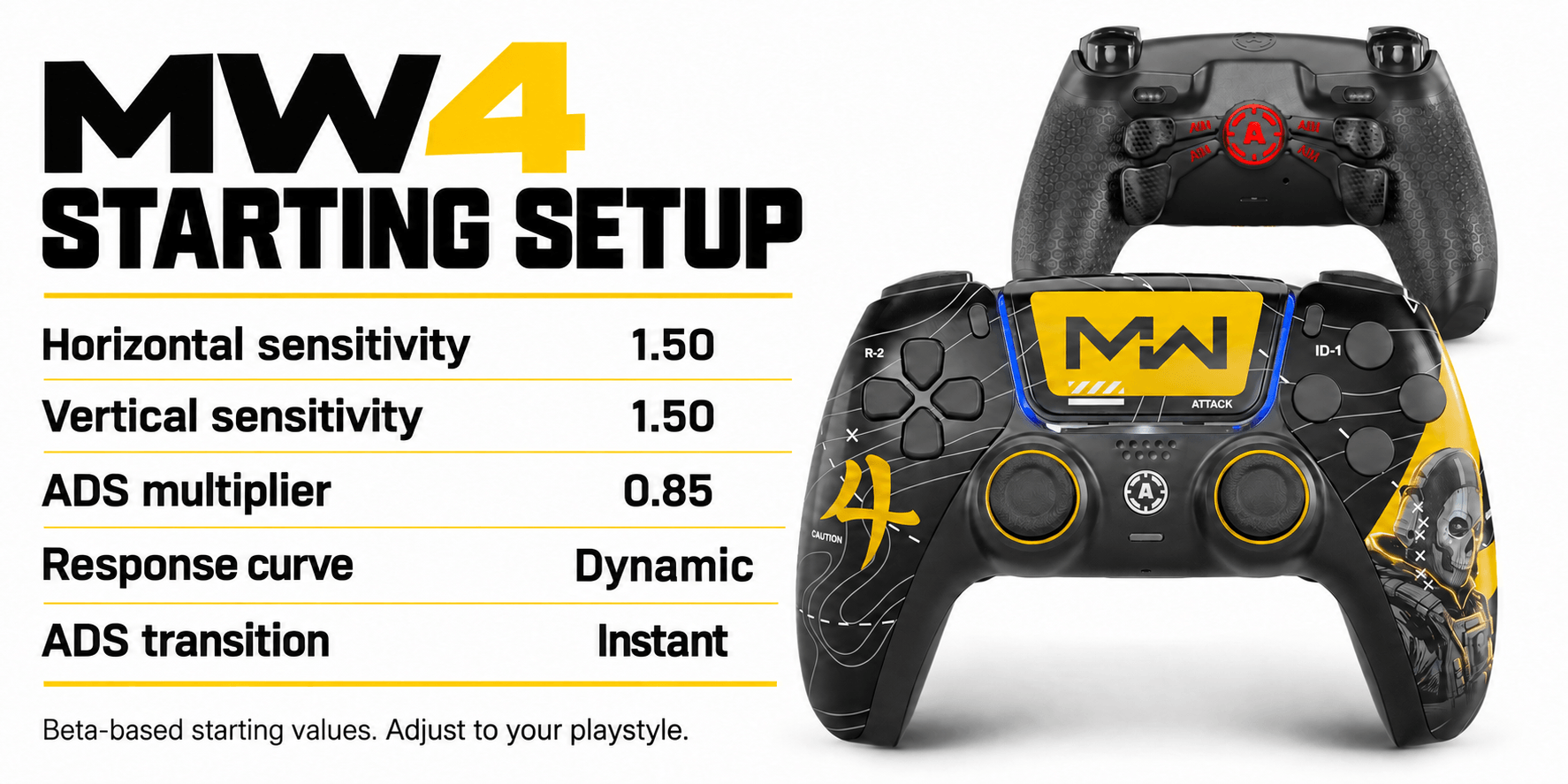
For an initial comparison with your current setup, test these values:
| Setting | Starting option | What to check |
|---|---|---|
| Horizontal sensitivity | 1.50 | Can you turn comfortably without overshooting? |
| Vertical sensitivity | 1.50 | Can you make controlled vertical corrections? |
| ADS sensitivity multiplier | 0.85 | Can you track targets while aiming down sights? |
| Aim response curve | Dynamic | Do small corrections and fast turns feel predictable? |
| ADS sensitivity transition | Instant | Does the transition into ADS feel comfortable? |
This is a reference configuration, not a universal best preset. The sensitivity, ADS and curve combination was reported during the MW4 beta.
For traditional stick aiming, these additional options are worth testing:
| Setting | Option to test |
|---|---|
| Target Aim Assist | On |
| Controller Vibration | Off |
| Trigger Effect | Off |
| Motion Sensor Function | Off |
| Aim Down Sight Behavior | Hold |
| Interact/Reload Behavior | Tap to Reload |
These options appear in CheckMate Gaming’s published beta recommendations. Players who use gyro aiming should configure motion controls around that playstyle.
Save your current configuration before making changes. Then adjust one category at a time.
How to find your best MW4 sensitivity
Sensitivity must support both quick turns and precise corrections. A setting that feels fast when looking around may still be difficult to control during a gunfight.
Start with the table above and run three checks:
- Target acquisition: move your crosshair between stationary targets.
- Tracking: follow a moving target while aiming down sights.
- Turning: check whether you can comfortably turn towards a new threat.
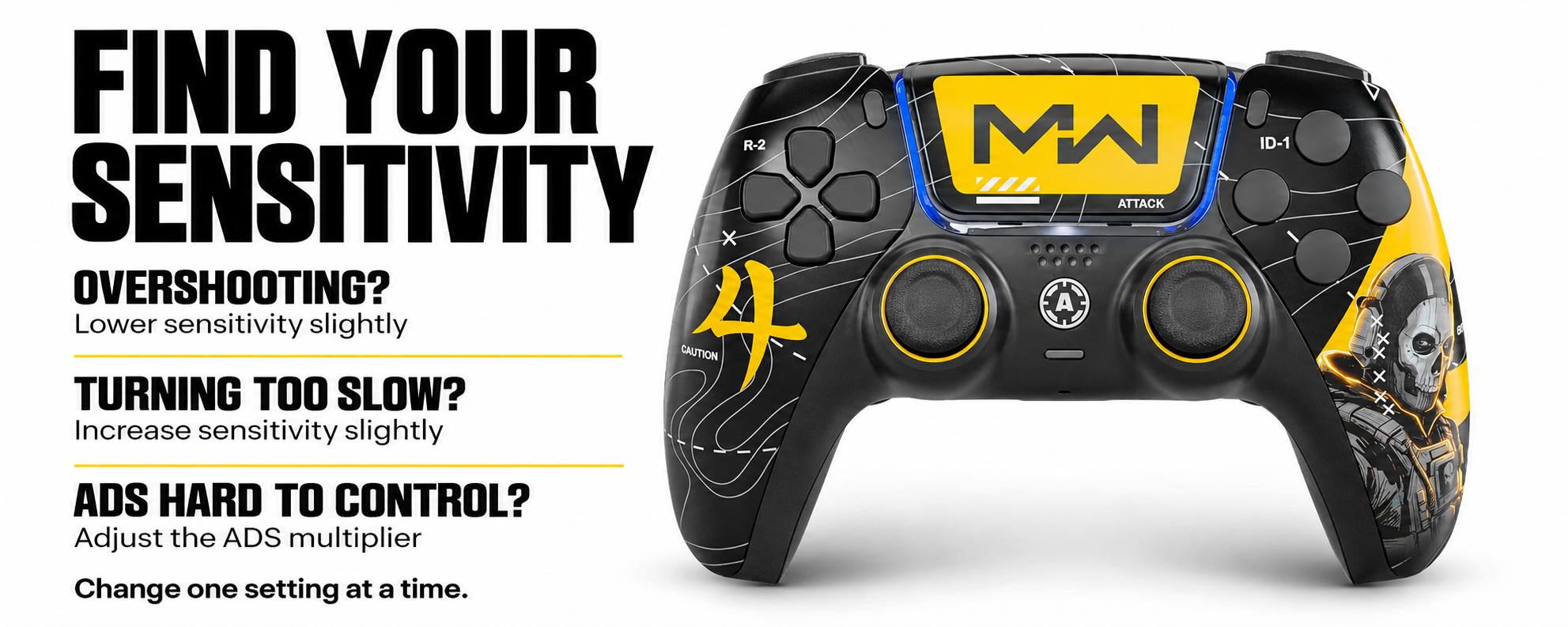
If you consistently move past the target, reduce sensitivity slightly. If you struggle to turn far enough, test a small increase.
Keep horizontal and vertical sensitivity equal initially so there are fewer variables to manage. Adjust them separately later if you have a clear reason.
ADS sensitivity: improve control while aiming
The ADS sensitivity multiplier adjusts your aiming speed when looking down sights.
Test 0.85 against your current value with the same weapon and optic. Judge it by how well you can follow a target and make small corrections, rather than how quickly you can sweep across the screen.
- If you repeatedly overshoot while ADS, test a lower multiplier.
- If you cannot keep up with a moving target, test a higher one.
- If hip-fire turning already feels comfortable, leave general sensitivity unchanged during this test.
Give each adjustment enough practice to distinguish unfamiliarity from a setting that genuinely feels unsuitable.
Dynamic or Standard response curve?
Response curve changes how the game translates stick movement into aiming movement.
Start by comparing Dynamic and Standard while keeping sensitivity, ADS and deadzones unchanged. Both appear in reported MW4 beta configurations, with different players preferring different behaviour.
Use the same aiming tests for both:
- Small corrections near a target.
- Continuous tracking.
- Larger movements for turning.
Choose the curve that makes those inputs easiest to repeat. Avoid switching curves after every difficult match: assess the setting across several comparable tests.
Best settings for Modern Warfare: tune your own controller
Minimum deadzone is the amount of initial stick movement the game ignores.
A large minimum deadzone can make small inputs feel less responsive. A setting that is too low may register unwanted input when you release the stick.
How to set minimum deadzones
- Record your current values.
- Leave the sticks untouched and check for unwanted camera or character movement.
- Reduce one stick’s minimum deadzone gradually.
- If unwanted movement appears, raise the value until it stops.
- Repeat for the other stick.
- Check again after moving and releasing each stick several times.
Tune the aiming stick and movement stick separately. They do different jobs and do not need identical values.
Leave maximum deadzones unchanged during this first test. Changing minimum and maximum values together makes the result harder to judge.
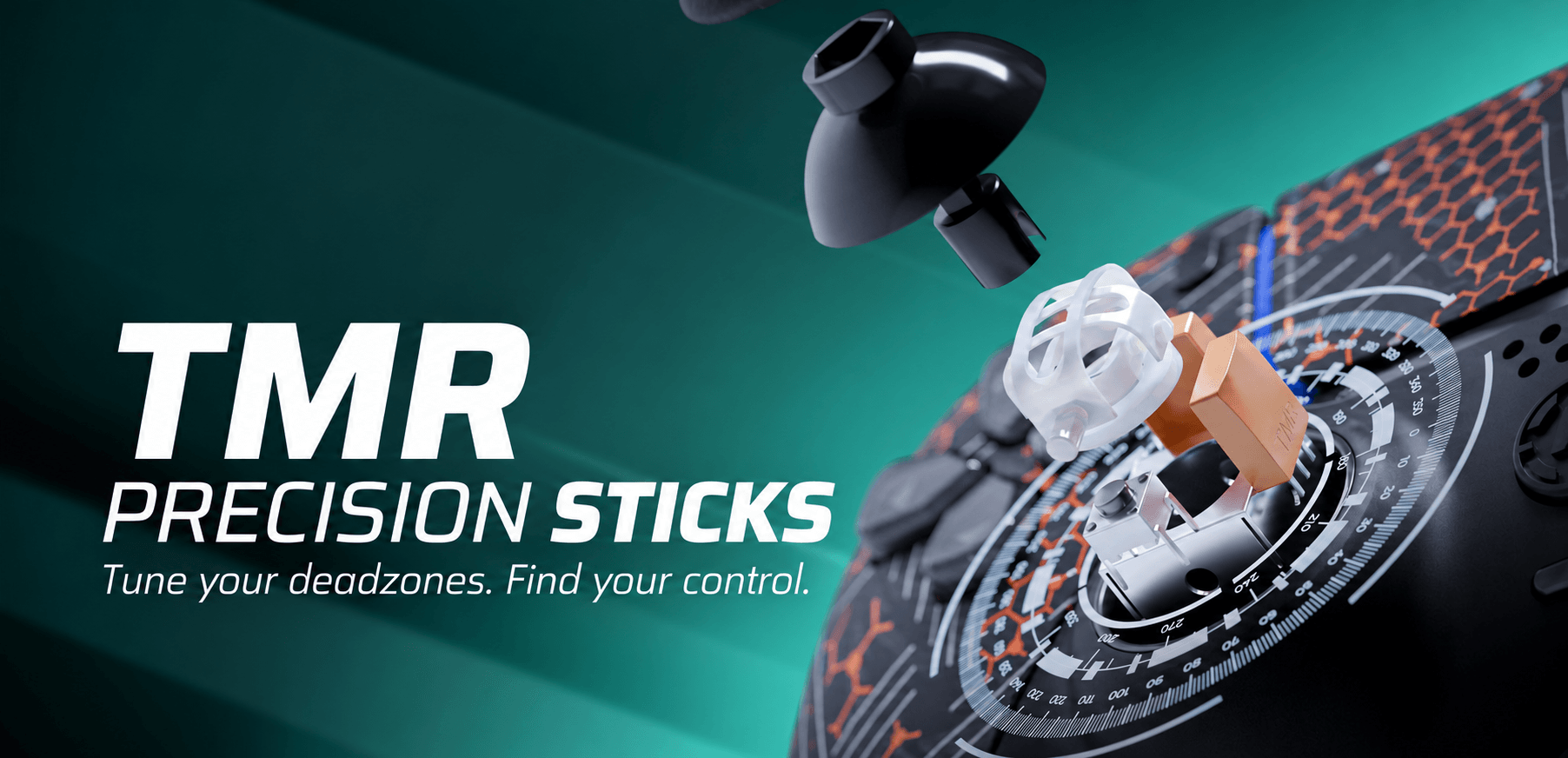
Should TMR sticks use zero deadzone?
TMR sticks can be used with zero minimum deadzone if the controller remains stable, but zero is not automatically the best setting. The right value depends on calibration, how the sticks return to centre and the game’s input processing.
Minimum deadzone determines how far you need to move a stick before the game registers an input. Lowering it allows smaller movements to register, but it can also expose slight unwanted input around the centre position.
To find your setting, leave the right stick untouched and check whether the camera stays still. Move the stick in several directions, release it and repeat. If the camera moves on its own, gradually increase the minimum deadzone until it remains stable. Test the left stick separately for unwanted character movement.
Deadzone and controller sensitivity do different jobs. Deadzone sets the threshold for registering movement; stick sensitivity controls how quickly your view moves once that input is registered. Tune deadzone first, then adjust sensitivity and the ADS multiplier.
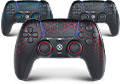
The AIM MW4 PS5 FPS includes TMR Precision Sticks. Start with a low, stable deadzone and test your aiming settings around it. The goal is to register deliberate small inputs while keeping the camera still when you release the stick.
Trigger settings for MW4
For controller play, try Trigger Effect: Off if you prefer aiming and shooting without adaptive trigger resistance. This was recommended in a published MW4 beta guide, but your preferred setting may differ.
Short-click or full trigger travel?
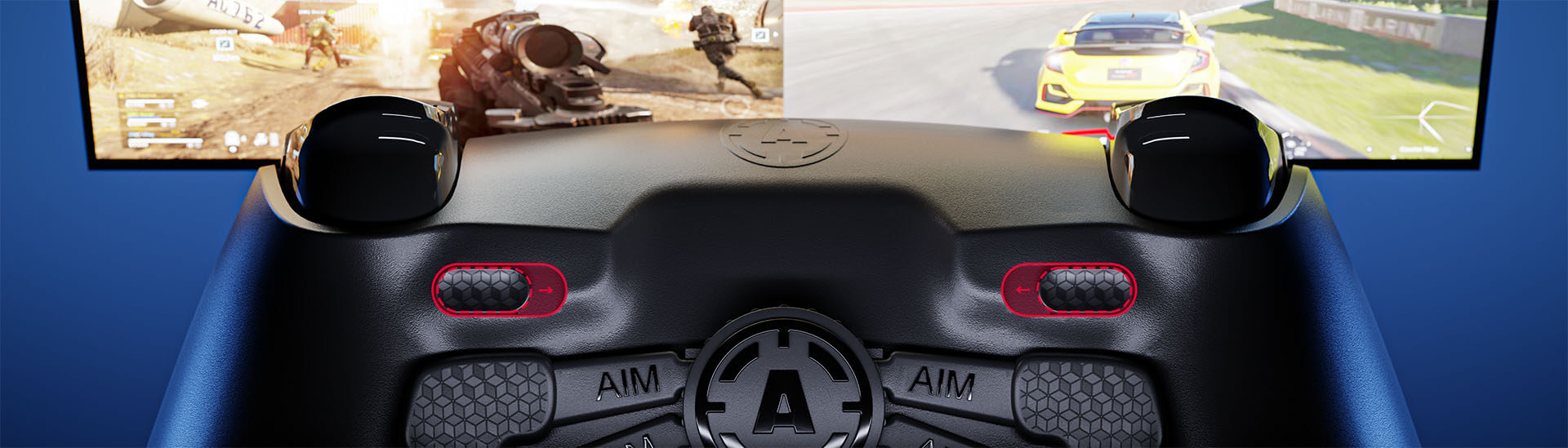
The AIM MW4 PS5 FPS features Active Triggers, letting you switch between 1 mm mouse-click mode and full trigger travel with adaptive functionality.
In mouse-click mode, you press through a shorter distance to activate the trigger. The defined click may suit players who prefer a compact, tactile press for aiming and shooting.
Full travel gives you the longer trigger movement and access to adaptive effects when supported and enabled in the game.
Check your button layout
Before choosing a trigger mode, check which buttons you use to aim and fire. If you swap L1/R1 with L2/R2, those actions move between the bumpers and triggers. This determines whether you use AIM Smart Bumpers or Active Triggers for those inputs.
What can shorter triggers improve?
Shorter travel can make repeated presses feel more comfortable and easier to manage. It does not increase a weapon’s maximum fire rate or remove the game’s firing delay.
The hardware mode and the in-game Trigger Effect setting are separate. Test both trigger modes with the same button layout and keep the combination that feels most consistent.
Movement settings and paddle mappings
Movement settings should help you perform intended actions without introducing unwanted ones.
A beta-based configuration to compare is:
| Setting | Option to test |
|---|---|
| Slide/Dive Behavior | Tap to Slide |
| Sprint/Tactical Sprint Behavior | Toggle |
| Sprint Assist | Off |
These options come from CheckMate Gaming’s beta guide and favour manual control over sprint activation. Assisted sprinting may suit you better, so compare it separately.
Suggested AIM paddle setup for MW4
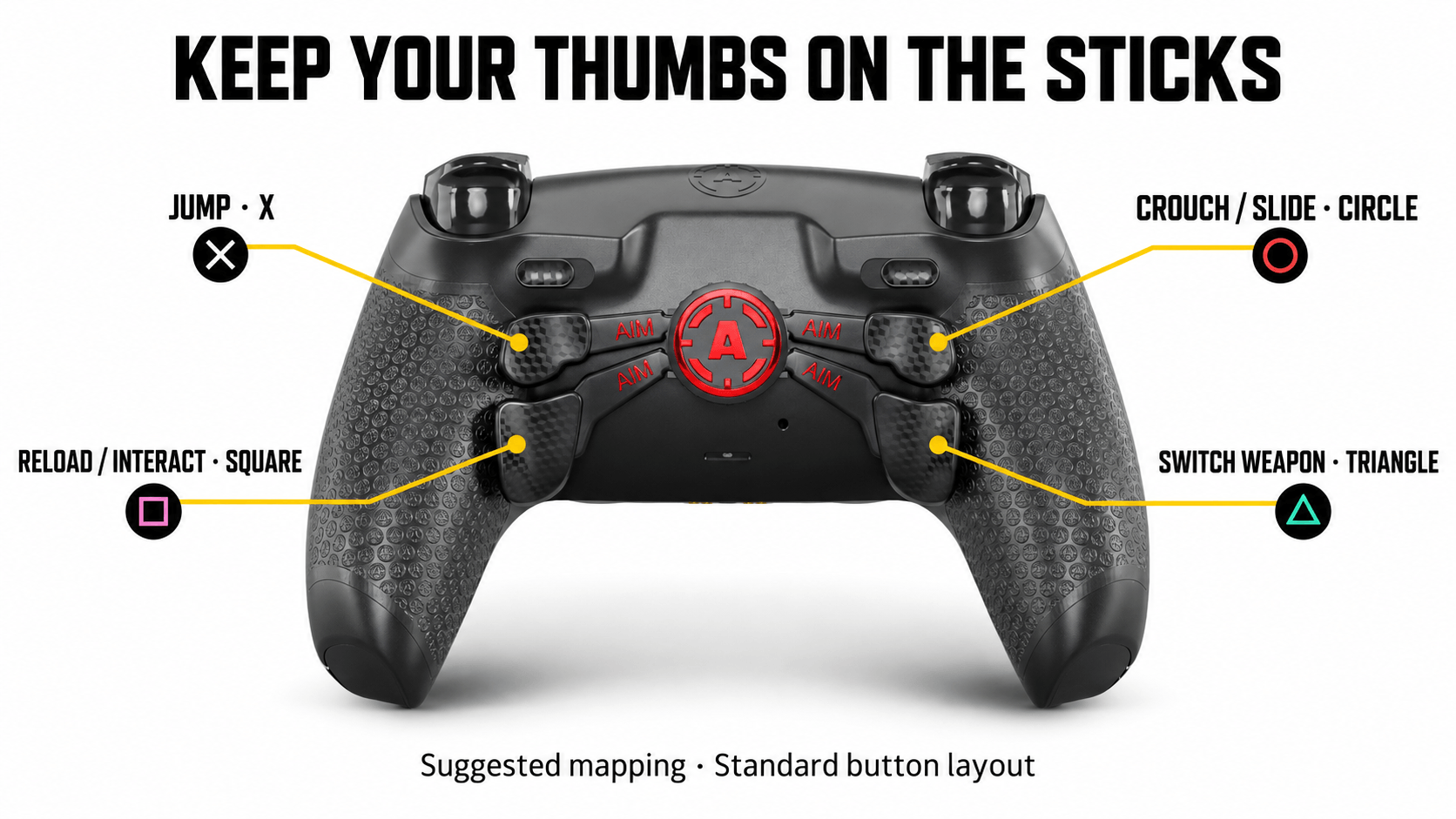
Rear paddles let you access mapped face-button inputs while keeping your thumbs on the sticks.
For a standard PS5 button layout, try this suggested mapping:
| Rear paddle | Button input | Action with a standard layout |
|---|---|---|
| Left upper | Cross / X | Jump |
| Right upper | Circle | Crouch or slide |
| Left lower | Square | Reload or interact |
| Right lower | Triangle | Switch weapon |
This is a suggested configuration, not a fixed preset. Check your in-game layout before mapping: Tactical and custom layouts can assign actions to different buttons.
Start with jump and crouch/slide. Practise those first, then add reload and weapon switching.
On PC, check the button prompts and actions recognised by the game before assigning the same layout.
How AIM features can help you play more comfortably
A comfortable controller setup makes frequently used actions easier to reach. AIM features give you more control over button placement, trigger feel and stick height, so you can adapt the controller to your grip and playstyle.
Keep aiming while jumping or reloading
On a standard controller, pressing a face button usually means lifting your right thumb off the aiming stick. During a close-range fight, that can interrupt your ability to follow a moving target.
AIM remappable paddles let you access those inputs from the back of the controller. Assign jump or crouch to a paddle, and you can perform the action while keeping your right thumb on the stick. Mapping reload or weapon switching gives you the same flexibility when preparing for your next engagement.
For MW4, start with two actions you use regularly, such as jump and crouch/slide. Practise them until you can press the paddles comfortably without changing your grip, then add further mappings.
The benefit is practical: more actions within reach while your thumbs stay positioned for movement and aiming.
Choose your trigger and bumper feel
In a close-range fight, aiming, firing and using equipment can happen in quick succession. The physical feel of those inputs matters, especially if you prefer a short click over a longer press.
AIM Active Triggers let you switch between a 1 mm mouse-click mode and full trigger travel with adaptive functionality. The short-click mode reduces the distance you need to press and provides a defined activation point. Full travel gives you another option when switching to games that benefit from longer trigger movement.
Smart Bumpers bring a short, mouse-like click to L1 and R1. With a standard button layout, these inputs are typically used for equipment. If you swap L1/R1 with L2/R2 in the game, you can use the bumpers for aiming and shooting instead.
This gives you two ways to explore your preferred setup: aiming and firing with Active Triggers, or using Smart Bumpers with swapped assignments. Keep your sensitivity unchanged while comparing them, and choose the layout that feels easiest to reach without adjusting your grip.
These modifications change physical travel and tactile feedback. They do not increase a weapon’s maximum fire rate, but they can make frequently used presses feel more comfortable and consistent.
Adjust stick height to your grip
Interchangeable AIMSticks let you experiment with stick height. Try a different top while keeping sensitivity unchanged, then assess tracking and small corrections.
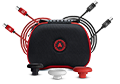
The AIM MW4 PS5 FPS controller combines these features with TMR sticks. Its FPS Pro Setup Kit includes extra paddles, Pro grips, one high-rise stick and a USB-C cable.
Explore the AIM MW4 PS5 FPS controller →
MW4 controller setup on PC
On PC, separate in-game aiming settings from controller connection and polling settings.
Sensitivity and deadzones determine how your inputs behave in the game. Polling rate determines how frequently the controller reports inputs to the computer.
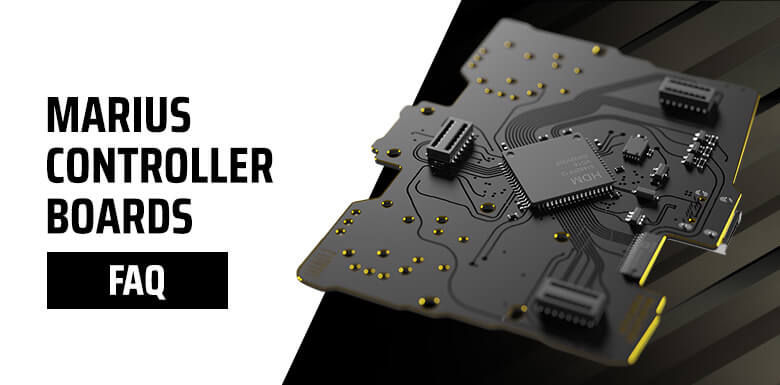
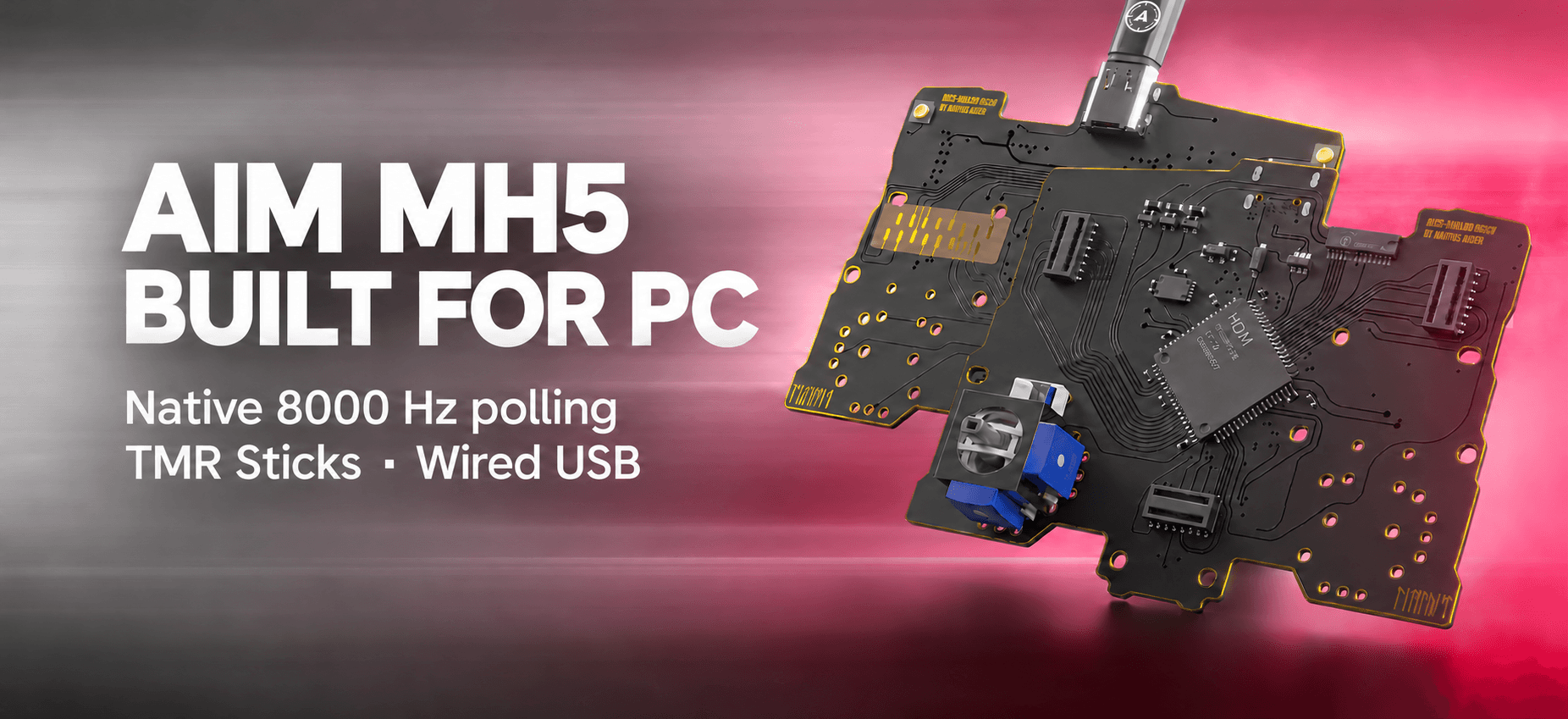
The AIM MH5 / Marius Board range offers native polling up to 8000 Hz and TMR sticks. At 8000 Hz, the nominal reporting interval is 0.125 ms; that is not the total delay between pressing a button and seeing a response on screen.
MH5 is a dedicated wired Windows PC controller and does not support PlayStation or Xbox consoles.
Practical PC setup checklist
- Connect directly to a rear motherboard USB port.
- Confirm that the game recognises the controller.
- Test a stable polling rate for your system.
- Tune sensitivity and deadzones using the same process as above.
- Check paddle mappings against the displayed button prompts.
If you experience stuttering at a higher polling setting, compare a lower rate before changing your aiming configuration. Stable frame delivery matters when judging how a controller feels.
Troubleshooting: what should you change first?
Use the symptom to choose your next test.
| What you notice | What to check first |
|---|---|
| You overshoot targets while looking around | General sensitivity |
| Looking around feels good, but ADS is difficult to control | ADS multiplier |
| Small stick movements feel unresponsive | Minimum deadzone |
| Camera or character moves with sticks untouched | Deadzone and controller calibration |
| Aiming feels unfamiliar after changing the curve | Compare curves with other settings unchanged |
| You lose stick control when pressing face buttons | Paddle mappings |
| PC gameplay stutters after increasing polling | Polling rate and connection |
| Controls feel different after an update | Confirm saved settings are still applied |
These are starting checks, not diagnoses. Change one variable and repeat the same test before moving to the next.
Infinity Ward adjusted movement during the beta and warned that a PC update could reset some in-game settings. Save screenshots and recheck your configuration after major updates.
Frequently asked questions
Are these settings suitable for PS5 and PC?
The aiming configuration is a starting reference for controller play on either platform. PC players should also check connection, polling and the button prompts recognised by the game.
Should I copy professional controller settings?
They can provide a comparison point, but your grip, stick height and preferences affect what feels comfortable. Keep a setting because it helps you control your aim consistently.
Can an Aimcontroller help in COD?
Yes. Rear paddles give you easier access to actions while aiming, and trigger modes and stick options let you tailor the physical controls. Their benefit comes from choosing a setup you use comfortably and practising with it.
Which AIM controller should I choose?
For PS5, explore the AIM MW4 PS5 FPS. For a dedicated wired Windows PC setup, explore AIM MH5 / Marius Board controllers.
Get your setup ready
Save your starting settings, tune one variable at a time and learn your paddle mappings. Build a configuration you can use confidently when a match gets busy.
Discover AIM MW4 PS5 FPS →
Find your AIM PC controller →

Latest news
Best MW4 Controller Settings for PS5 and PC
Struggling to stay on target, overshooting your shots or taking your thumb off the aiming [...]
Oct
Arc Raiders Frozen Trail Update: Release Date and More
ARC Raiders Frozen Trail: Release Date, New Map & Everything Coming October 8 ARC Raiders [...]
Sep
How to Customize a PS5 Controller: Design & Performance
A PS5 controller does not have to look, feel or perform exactly like the standard [...]
Aug
Marius Board Guide: Native 8000Hz Polling, TMR Sticks, Advanced Calibration & Ultra-Low Latency Performance
Introduction Competitive gaming has changed dramatically over the last decade. Players invest in 240Hz and [...]
Jun
How Long Does It Take to Adapt to Back Paddles? | PS5 Paddle Guide
How Long Does It Take to Adapt to Back Paddles? Most players struggle with back [...]
May
Best Controller Settings for Warzone (2026) + Loadout Guide for Aim, Movement and Consistency
Winning fights in Warzone is not just about running the best loadout on your gaming [...]
Apr
Best PS5 Controllers in 2026 – Ultimate Ranking of Pro & Custom PS5 Controllers
Best PS5 Controller 2026 – Introduction Are you looking for the best PS5 controller in [...]
Mar
How Controller Maintenance Prevents Drift, Stick Drift, and Joystick Issues in PS5 and Xbox One Controllers
How Controller Maintenance Prevents Drift, Stick Drift, and Joystick Issues on PS5 and Xbox One [...]
Dec